Free Mini Course
Welcome to Hit Record
Short-Form Video for Small Business
Short-form video is the highest-reach, lowest-cost marketing tool available to small business owners right now. This course gives you the system, the setup, and the confidence to actually use it.
The Problem
You know you should be posting video. So why aren't you?
It's not laziness. It's not a lack of time. Most small business owners who aren't posting video fall into one of three traps: they don't know what to film, they're scared to be on camera, or they think they need better equipment. None of those things are the real problem.
The real problem is not having a system. Once you have one, the blank-screen panic goes away. The camera fear gets manageable. And the filming actually happens.
TikTok and Instagram Reels are the only marketing channels where a small business with zero followers can reach 10,000 people for free — today. The algorithm rewards content, not audience size. That means a plumber in Yarmouth has the same reach potential as a brand with a million followers, as long as the content is good.
The window for this advantage won't be open forever. The businesses using it now are the ones who'll be known when it closes.
Remember this
The compound starts around video 40. You just have to get there. An imperfect video that exists beats a perfect one stuck in drafts. Post it. Every time.
Lesson 01 — Your Content System
The 4-Bucket Content System
Never stare at a blank screen again
Every piece of content you'll ever make fits into one of four buckets. Rotate through them in order and your audience gets everything they need to know, like, and trust you — automatically.
The Framework
Four buckets. Endless content.
The 4-Bucket system is a content rotation framework. Instead of asking "what should I post today?" you rotate through four content types in order. The system does the thinking so you don't have to.
- A morning walk-through of your space before doors open
- How a product or service actually gets made
- A "day in the life" clip — packing orders, setting up, on the road
- What's on your desk / in your bag / in your kit
- Answer the one question you get asked every single week
- A myth in your industry that costs people money
- Three things to look for before hiring someone in your category
- A quick tip your customers wish they knew sooner
- Why you actually started this — the real reason, not the LinkedIn version
- A moment last month that made the work worth it
- The hardest thing about doing what you do
- A belief you hold that others in your industry might disagree with
- An opening this month — who it's for and how to grab it
- A specific offer with a specific deadline
- "DM me the word [keyword] and I'll send you [thing]"
- A direct invitation: "Come see us this weekend"
The rotation: Window → Expert → Human → Invite → repeat. Stick to it for 30 days and watch what happens. The algorithm rewards consistency more than any single viral moment.
Block one hour on your calendar — treat it like a client appointment. Write your four video ideas beforehand (one per bucket). Film all four in one sitting. Change your shirt between videos so they look like different days. Edit and schedule. Done for the month.
- Block the hour in your calendar right now — before you close this tab
- Write your 4 ideas first, one per bucket — have them ready before you film
- Change your shirt or move to a different spot between each video
- Film all four before editing any of them — stay in filming mode
- Post one per week — your audience thinks you're filming constantly
Content Batch Planner
Tell us your posting frequency and we'll map out your month.
Your Monthly Plan
Week 1
4
videos
Introduce
Week 2
4
videos
Educate
Week 3
4
videos
Connect
Week 4
4
videos
Convert
Lesson 1 Check-In
How does this apply to your business?
Your answers help build your personalised content personality at the end.
When it comes to content ideas, which feels most true for you right now?
Total blank slate — I never know what to post and usually just don't
I have ideas sometimes but they're inconsistent and I post sporadically
I have a rough content approach but it's not structured or batched
Which of the 4 buckets feels most natural to you — the type of content you'd be most comfortable creating?
🪟 The Window — showing behind-the-scenes and how things work
🧠 The Expert — teaching, tips, and industry knowledge
❤️ The Human — personal story, values, and the why behind the business
📣 The Invite — offers, CTAs, and direct asks
How realistic does a monthly batch filming session feel for your schedule?
Honestly difficult — I can barely find an hour, let alone dedicate it to filming
Possible if I schedule it in advance and treat it like a real appointment
Completely doable — I just need the system and I'll make it happen
Lesson 02 — Setup & Filming
You Don't Need a Studio.
You Need a Window.
The minimal setup that actually works
The two things that make or break a video are audio and light. Everything else is optional. A $2,000 camera with bad lighting looks worse than a phone in a bright room with a $30 mic.
Your Filming Kit
Four things. That's it.
The camera already in your pocket shoots better video than broadcast cameras did 10 years ago. Film vertically (9:16) for TikTok, Reels, and Shorts.
Position yourself so the window is in front of you, light hitting your face. This is your free softbox. Overcast days are your best filming days — the cloud diffuses the light perfectly.
A plug-in lavalier that connects directly to your phone. This single upgrade will make your videos sound professional immediately. Audio quality is everything — it matters more than video quality.
Your camera needs to stay still at eye level or slightly above. A stack of books works perfectly. A phone tripod costs $15 on Amazon. Below eye level = unflattering every single time.
- Window in front of you = good. Window behind you = silhouette disaster.
- Overhead lights create shadows under your eyes — turn them off when filming near a window.
- Overcast light is softer and more flattering than direct sunlight.
- If you film at night, a cheap ring light ($30–$50) solves the problem completely.
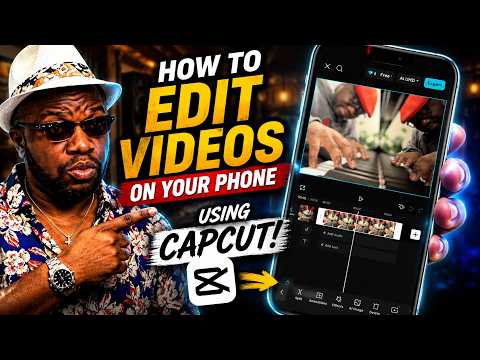
When you film directly inside the TikTok app and post without leaving, TikTok knows. The algorithm gives native content preferential reach over videos created elsewhere and uploaded. Film in-app for simple talking-head videos. Use CapCut for anything that needs real editing.
Film in TikTok
Open TikTok → tap + → film directly in-app. Access to teleprompter, timer, trending sounds, and auto-captions all in one place.
Best for: talking-head videos, quick tips, daily content. Fastest path from idea to posted.
Film in camera app
Use your phone's native camera for anything requiring more control — better quality footage you plan to edit properly in CapCut before posting.
Best for: b-roll, walkthroughs, anything multi-clip that needs editing.
Film in Instagram
Same native-filming logic applies for Reels. If your audience lives on Instagram, film directly in the Instagram camera when you can.
Best for: if Instagram is your primary platform.
Film + edit in CapCut
For anything polished — multiple clips, voiceover, b-roll layers, captions. Film everything you need, then assemble in CapCut.
Best for: batch-filmed content, tutorials, anything requiring real editing time.
Pro Tip — The Batch Method
Block one hour on your calendar. Film all four bucket videos in one sitting. Change your shirt between each video — different clothes = looks like a different day. Edit and schedule. One hour in, the whole month out. The people who do this stop feeling behind on content forever.
Lesson 2 Check-In
Setup & filming reality check
3 more questions toward your content personality result.
What's your biggest barrier to actually filming videos right now?
Being on camera — I hate how I look or sound and I avoid it completely
Time — I never seem to find the right moment to actually sit down and film
Ideas — I sit down to film and then draw a complete blank on what to say
Not much — I'm already filming, I just want to do it better
How would you describe your current filming setup?
Nothing — I've never really set up to film intentionally
My phone propped up somewhere — no mic, inconsistent lighting
Pretty decent — I've thought about lighting and audio at least a bit
What type of video content do you imagine yourself creating most for your business?
Talking to camera — tips, advice, or stories directly to the viewer
Behind-the-scenes — showing what I do, how it gets made, the process
A mix — whatever fits the content, I'll adapt
Lesson 03 — Hooks, Editing & Captions
Learn the Concepts,
Not the Buttons
Apps change. These principles don't.
The core concepts of video editing, hook writing, and caption strategy are the same whether you're in CapCut, InShot, Premiere, or anything else. Understand what you're trying to do and you'll figure out any app.
The Hook — First 3 Seconds
You have 3 seconds. Make them count.
A hook is the first line of your video — the thing you say or show in the first 1–3 seconds that makes someone stop scrolling. Without a strong hook, nobody watches the rest. Here are 12 proven formulas with fill-in-the-blank versions for your business.
- Never start a video with "Hey guys" or "Hi everyone" — it burns your 3 seconds with nothing.
- Your hook should work as a text overlay AND your first spoken line — double stopping power.
- Specific beats vague every time. "3 plumbing mistakes that cost homeowners thousands" beats "3 plumbing tips."
- If unsure — go with the Knowledge Gap or the Warning. Most universally effective.
The core concepts of video editing are the same whether you're in CapCut, InShot, Premiere, or anything else. Understand what you're trying to do — and you'll be able to figure out any app. These are the concepts that matter.
The timeline is the foundation of every video editor. It's a horizontal strip that represents time — your video plays from left (beginning) to right (end). Every clip, piece of music, text layer, and sound effect lives on the timeline.
Multiple tracks run at the same time — your video plays while music plays underneath, while text overlays appear on top. Whatever is on the left happens first.
Splitting (sometimes called "cutting") means slicing a clip into two pieces at a specific point. It's the core of all video editing. You split to remove a pause, cut out a stumble, or separate two parts of a clip so you can delete the bad middle.
- Before and after any "um", "uh", or filler word you want to remove
- To remove dead air — any pause longer than about half a second
- Between two separate thoughts so you can reorder them
- To cut out a stumble, wrong word, or restart
Trimming is adjusting where a clip starts or ends by dragging its edge. Unlike splitting (which cuts in the middle), trimming shortens from the beginning or end. Use it to remove the moment before you started talking, or the few seconds after you finished.
B-roll is supporting footage that plays over your main talking-head clip. While your voice continues, the viewer sees something relevant — your product, your hands, your space. B-roll makes videos more dynamic, holds attention longer, and lets you hide cuts seamlessly.
- Your hands making, packaging, preparing, or delivering something
- A slow pan across your products or workspace
- Walking through your space
- A close-up of a tool, ingredient, or material you use
- A satisfied customer moment (with permission)
A significant portion of short-form video is watched on mute. If your video only works with sound, you're losing a huge chunk of potential viewers. Auto-captions are the single most impactful thing you can add after filming.
Auto-Captions
Auto-generated subtitles from your audio. TikTok, CapCut, and Instagram all generate them. Always review for errors — names and local terms often come out wrong.
The Hook Text
A line at the very start of your video stating the topic clearly before you speak. Stops the scroll for muted viewers immediately.
Text Overlays
Manual text added at specific moments — a stat, a key point, a "POV:". Use to reinforce your hook or call out key points as you speak.
Keep it readable
Large, high-contrast text. White text with a dark outline is safest on any background. If it can't be read in 2 seconds, it's too long or too small.
Music sets the energy of your video — but it should never compete with your voice. The rule is simple: your voice is always the loudest thing in the video. Music sits underneath it, not beside it.
- Use trending sounds on TikTok — the algorithm favors videos using popular audio.
- TikTok and CapCut have built-in music libraries cleared for use — stick to these.
- For voiceover videos, lower music to 15–20% of its original volume.
- Don't use copyrighted music (popular songs) — it can get your video muted or taken down.
Here's the truth: the best transition for most short-form business videos is a straight cut — no transition at all. A direct cut is what professional editors use. It's clean, fast, and keeps attention. Flashy transitions are a hallmark of beginner editing.
You don't need to colour-grade your videos. But a tiny adjustment can make your footage look more polished immediately.
Brightness
A small brightness boost (+5 to +15) makes the image feel cleaner and more energetic. Don't overdo it — blown-out highlights look worse than slightly dark footage.
Warmth / Temperature
Cool footage (blue tones) can feel sterile. A slight warmth adjustment makes your videos feel more approachable and human.
Filters
If you use a filter, pick one and use it consistently across all your videos. This builds a recognisable visual style. A light filter at 30–40% intensity is usually the right call.
Consistency above all
Whatever you choose, do the same thing every time. Your audience should be able to recognise your videos before they see your face or read your name.
When you finish editing in CapCut or InShot, you need to export the video to your camera roll before uploading to TikTok, Instagram, or anywhere else.
- CapCut and InShot both add a watermark by default. Always look for "export without watermark" — it's usually there.
- Export to camera roll first, then upload manually to TikTok or Instagram so you can write your caption and choose your cover image.
- In-app teleprompter — type your script, scroll as you talk
- Timer and countdown for hands-free filming
- Trending sound library built in
- Basic text, stickers, and effects
- Auto-captions generated from your audio
- Trim clips directly in the app after filming
- Full timeline editor — split, trim, reorder clips
- Auto-captions that generate and style from your audio
- B-roll layering over your main video
- Voiceover recording directly in the app
- Music library + volume control per track
- Background removal and noise reduction
- Export at 1080p without watermark (free)
- Simple timeline — split, trim, and reorder easily
- Music from library or your own files
- Text and sticker overlays
- Speed control — slow down or speed up clips
- Filter and basic colour adjustments
- Export without watermark available
- Native Reels filming with in-app editing
- Audio from Instagram's music library
- Basic text, stickers, and drawing tools
- Trending audio integration
- Auto-captions for Reels
- Import pre-edited videos from camera roll
Which app should I use? Start with TikTok native for simple videos. Learn CapCut for anything more complex. You don't need both InShot and CapCut — pick one and get good at it. The best app is the one you'll actually use.
Most people treat captions as an afterthought. But a strong caption extends your reach (TikTok and Instagram use captions for search), deepens the connection, and drives the action you actually want. These formulas work.
Caption length: Most high-performing captions are under 150 words. Short and purposeful beats long and rambling. End with either a question or a CTA — never just trail off.
These prompts give AI enough context to produce genuinely useful video ideas — not generic tips that could apply to anyone. Copy the prompt, fill in the [brackets], paste into ChatGPT or Claude, and get a full list back in seconds.
Lesson 3 Check-In — Final Questions
Last 3 questions — then we build your result.
Answer honestly. The more accurate you are, the more useful your result.
How comfortable are you on camera right now — speaking directly to your audience?
I actively avoid it — the idea of watching myself back is genuinely awful
Awkward but willing — I'll do it if I know what to say and have a system
Pretty comfortable — I don't love it but it doesn't stop me
Natural — I'm already showing up on camera and it feels authentic
Which type of video content do you think would perform best for your specific business?
Educational content — tips, how-tos, debunking myths in my industry
Behind-the-scenes — showing my process, products, or day-to-day
Story and personality — my journey, values, and what makes me different
Offer-driven — showcasing my products or services and getting people to buy
What would "winning" with video content look like for your business in 90 days?
Just showing up consistently — posting regularly without dread or procrastination
Real leads — people DMing me, visiting my website, or walking through my door from video
Being known locally — having people in my area recognise my business and name from social media
Almost Done
One Last Thing
Before Your Result
You've just been through the full Hit Record course — your feedback helps Jade make it better for every small business owner who comes after you. Takes 2 minutes, genuinely makes a difference.
How was the course?
Honest answers only — good or bad, it all helps.
Prefer to skip?
No pressure —
Your Content Personality Result